Lesson · Residents
Place your first order
Pick your tower, floor and flat, add and customise items, apply a coupon, then check out and pay. On the demo store the login code is shown on screen and payment is simulated.
Residents About 3 minutesUpdated
Who it's for
Residents ordering from the cafe in their society on a phone or computer. The Android app works the same way, except that it asks you to log in at checkout.
Before you start
- A 10-digit Indian mobile number (starting with 6, 7, 8 or 9). On the demo store, use a made-up number: no SMS is sent and the code is shown on screen.
- Your tower, floor and flat number.
- Nothing else. There is no app to install and no password.
Steps
Open the menu at bookmyfood.si. The banner tells you whether the cafe is open and how long deliveries are taking. If the kitchen is busy or closed, a notice says so.
Set your flat. Tap Deliver to (under the logo on a phone, beside it on a computer). Pick your tower, type your floor and flat number, add instructions for the rider if you like, and tap Save address. Saving asks you to log in first: enter your mobile number, tap Continue, then Verify & continue (on the demo the code is already filled in). The first time, add your name.
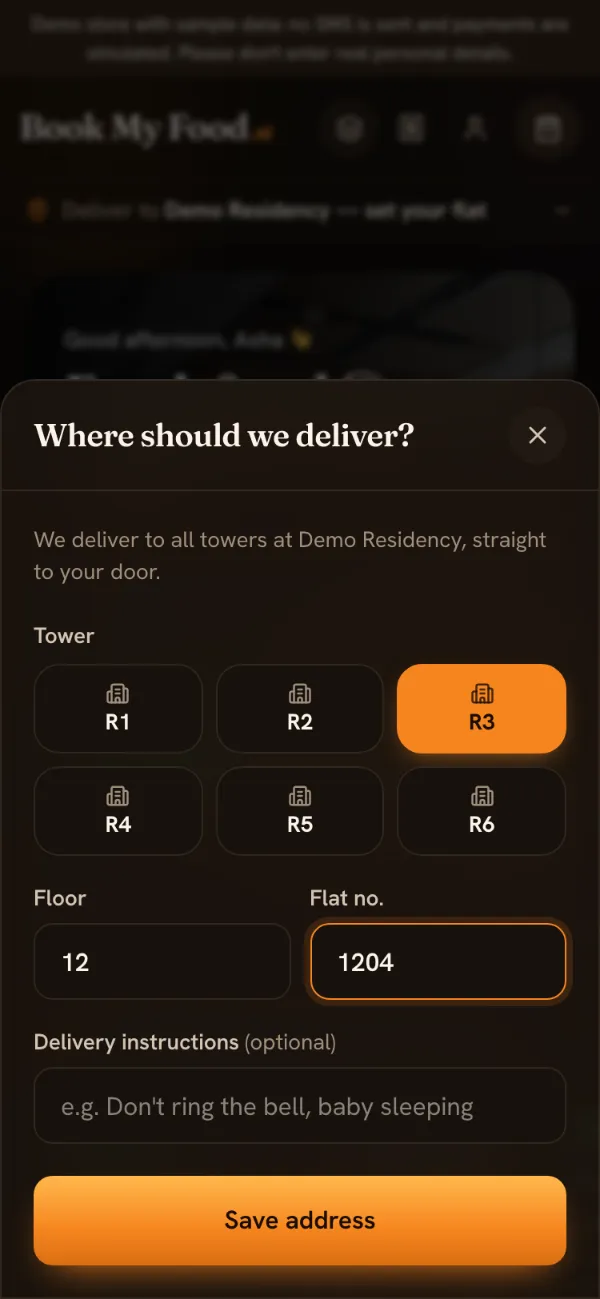
Tower, floor and flat: no map pin needed. Add items. Tap ADD on a dish. Dishes marked Customisable open a sheet first: pick one size, tick any add-ons (some groups only allow one choice), set the quantity, add a note such as “less ice”, then tap Add item · ₹…. The price on the button includes your choices.
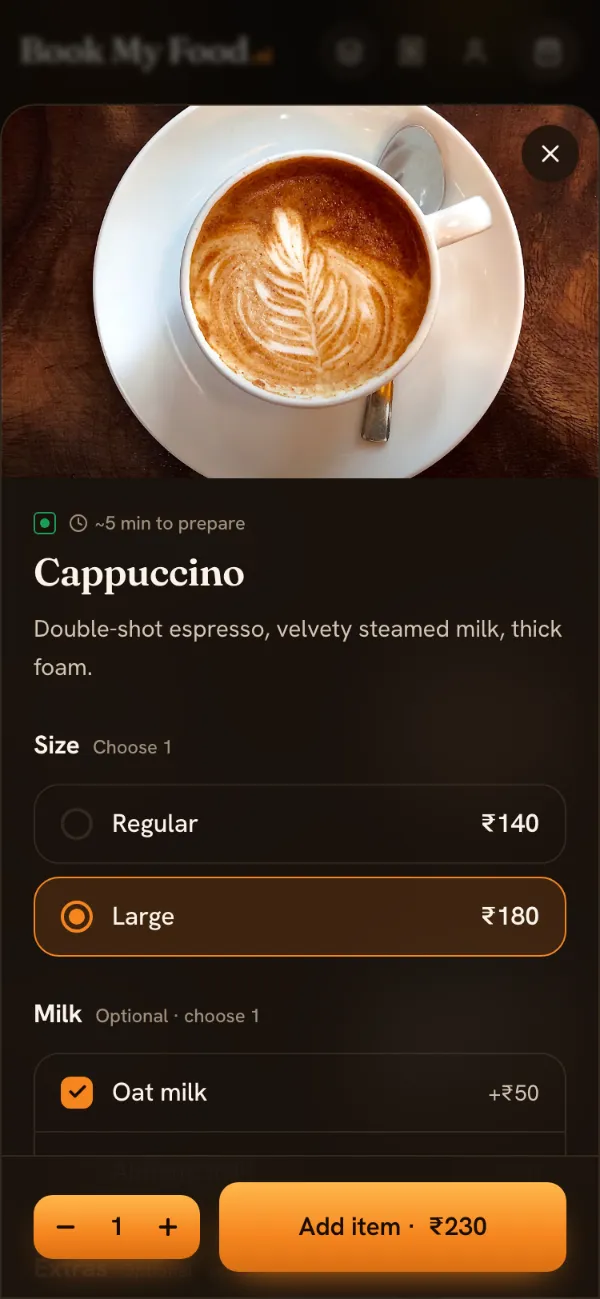
Sizes and add-ons change the price before you add. Open the cart. On a phone, tap the View cart bar at the bottom. On a computer, the cart sits on the right of the menu.
Apply a coupon. Under Offers & coupons, tap one of the offered codes or type your own and tap Apply. If a code can't be used, the reason appears under it, for example a minimum order or first order only. On the demo store, WELCOME50 takes ₹50 off a first order above ₹199.
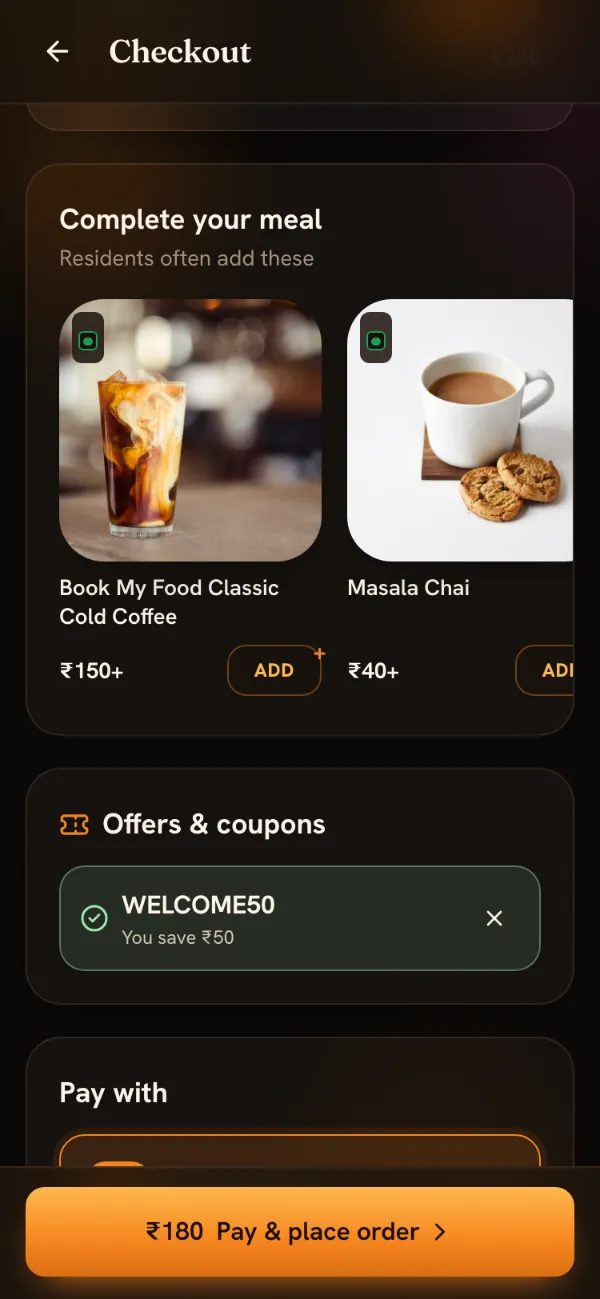
A valid coupon shows how much you save. Check the address and choose how to pay. The Deliver to card at the top shows your flat; tap Change to edit it. Under Pay with, choose UPI / Cards or Cash on delivery (only the methods the cafe has switched on are shown).
Place the order. Tap the orange button with your total: Pay & place order for UPI or card, Place order for cash. On the demo store a test payment screen opens: tap Pay ₹…. On a live store, Razorpay's payment screen opens instead.
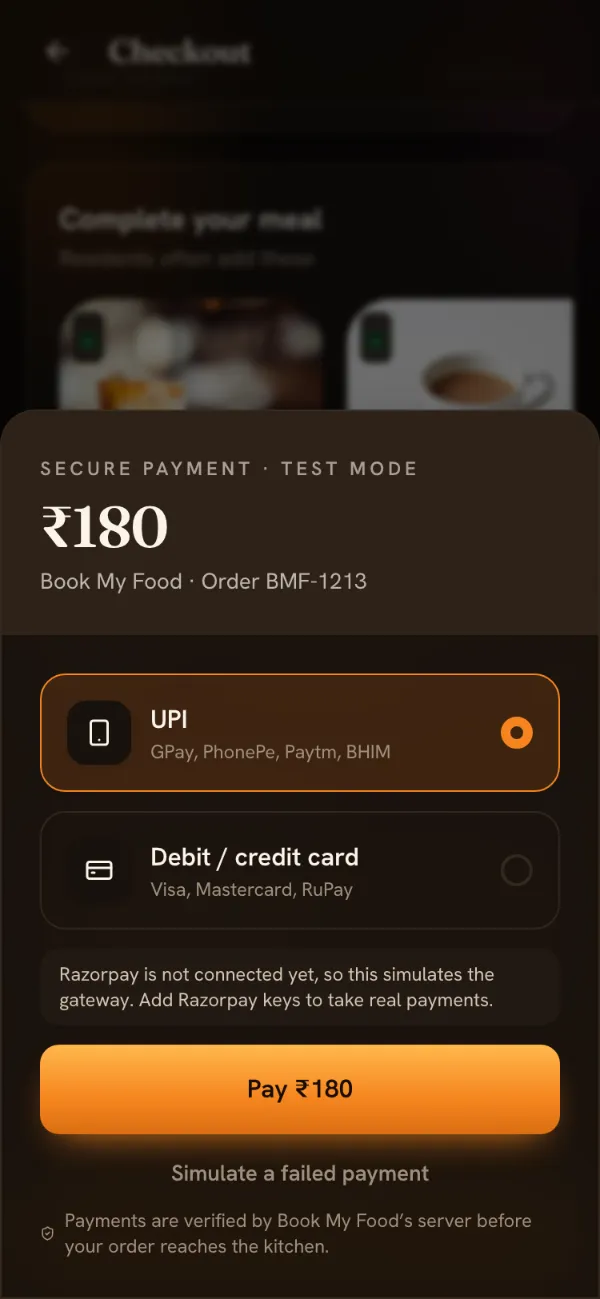
On the demo, payment is simulated and no money moves.
What you should see
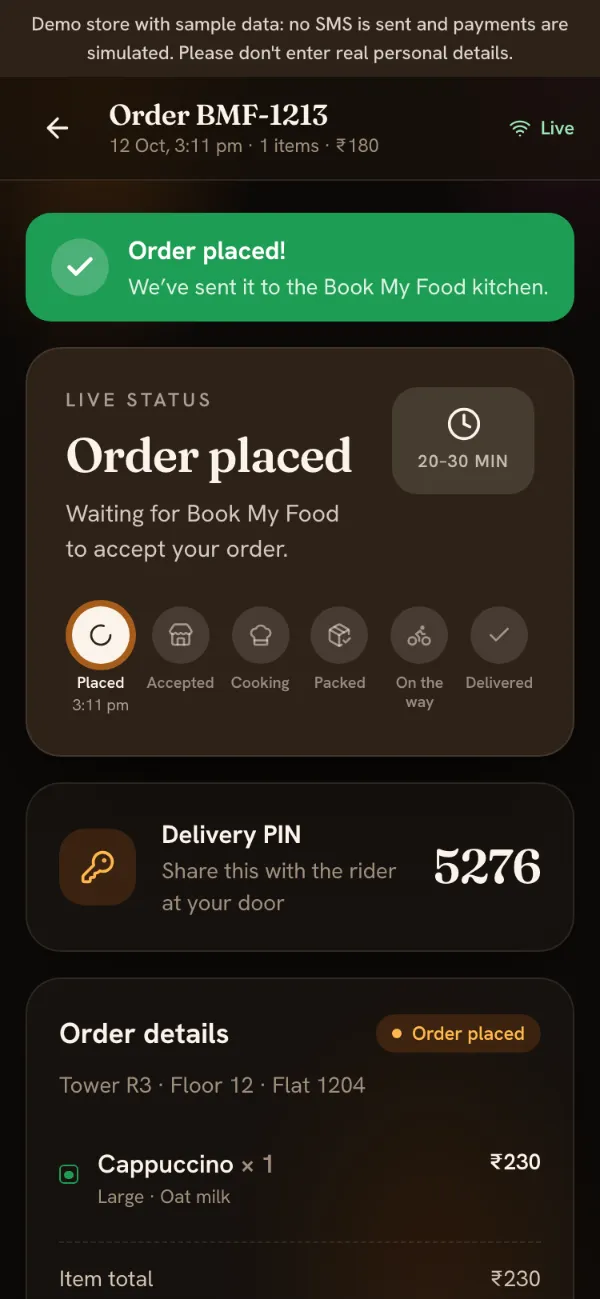
The tracker opens with a green Order placed! message and the status “Waiting for Book My Food to accept your order.” When the kitchen accepts, a countdown appears. Carry on with tracking your order.
Common mistakes
- The button is greyed out. Check for a red or amber message above it: the cafe may be closed or paused, an item in your cart may have sold out (remove it), or the order is below the minimum.
- “This coupon is for your first order only.” First-order codes only work if you have no earlier order on that store, apart from cancelled or unpaid ones.
- Wrong flat. The address you order with becomes your saved address. Fix it under Deliver to or in Account before your next order.
- Closing the payment screen. The order then waits as Awaiting payment. Open it from Your orders and tap Pay ₹… now, or cancel it. Unpaid online orders are cancelled after 30 minutes.
Want the whole journey in one page? See how it works, or the longer guide your first order on the demo store.