- For residents
- Getting started
- Demo store
Your first order on the Book My Food demo store, in under a minute
A resident's walkthrough of the demo store: log in with the on-screen code, set your flat, customise a coffee, apply WELCOME50, pay with the simulated gateway and land on the live tracker.
By Book My Food team · Published · Updated · 5 min read
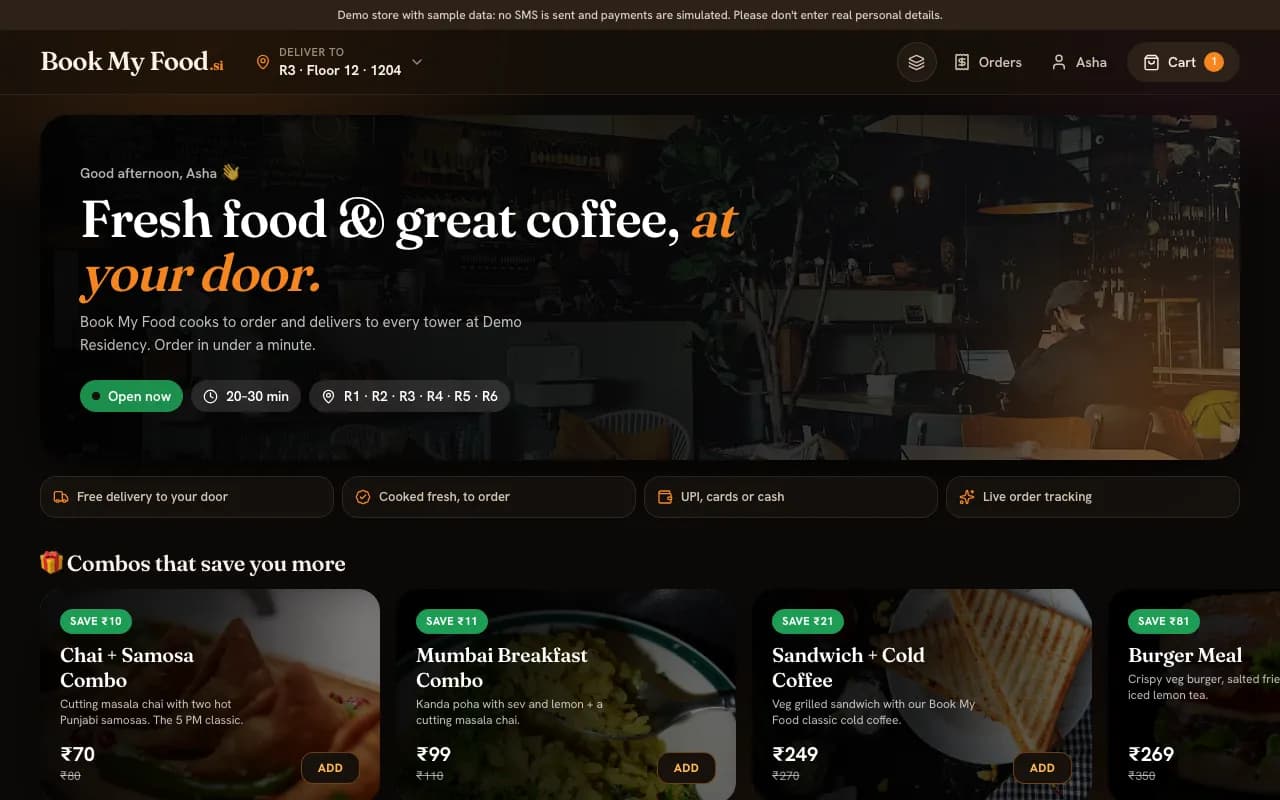
bookmyfood.si runs a demo store so anyone can try ordering the way a resident would. This walkthrough takes you from the menu to the live tracker on your first visit. Once you know where things are, it takes under a minute: the walkthrough below is 14 taps, plus typing your number, name, floor and flat. The first time, allow a little longer while you look around.
First, what the demo is and isn't.
What the demo store is
- A fictional society. “Demo Residency” in Navi Mumbai, its towers R1 to R6, its customers and its order history are made up.
- A draft menu. 77 items in 14 categories, from cutting chai and vada pav to pizza, with stock photos. Prices are real-looking but nobody is selling anything.
- No SMS. The 6-digit login code appears on screen and is filled in for you.
- No money. Payments go through a simulated gateway. You can also simulate a failed payment.
- No delivery. No kitchen is watching the demo's orders, so yours will wait at Order placed. The rest of the journey is shown later in this article.
Please don't enter real personal details. Any 10-digit mobile number starting with 6, 7, 8 or 9 works, and any first name will do.
1. Open the menu
Go to bookmyfood.si on your phone or computer. The top of the page tells you the store is open, how long deliveries take (20–30 minutes on the demo) and which towers it delivers to. Below that are combos, picks for the time of day, current offers and the house signatures, then the full menu by category.
Two things worth trying straight away: tap Veg only to hide everything that isn't vegetarian, and type “vada pav” or “cold coffee” into the search box.
2. Log in and set your flat
Tap Deliver to, choose a tower, type a floor and a flat number, and tap Save address. Because the address is saved to your account, you're asked to log in first:
- Type a mobile number and tap Continue.
- The demo shows “Test mode: code … is filled in for you”. Tap Verify & continue.
- Type a first name and tap Start ordering.
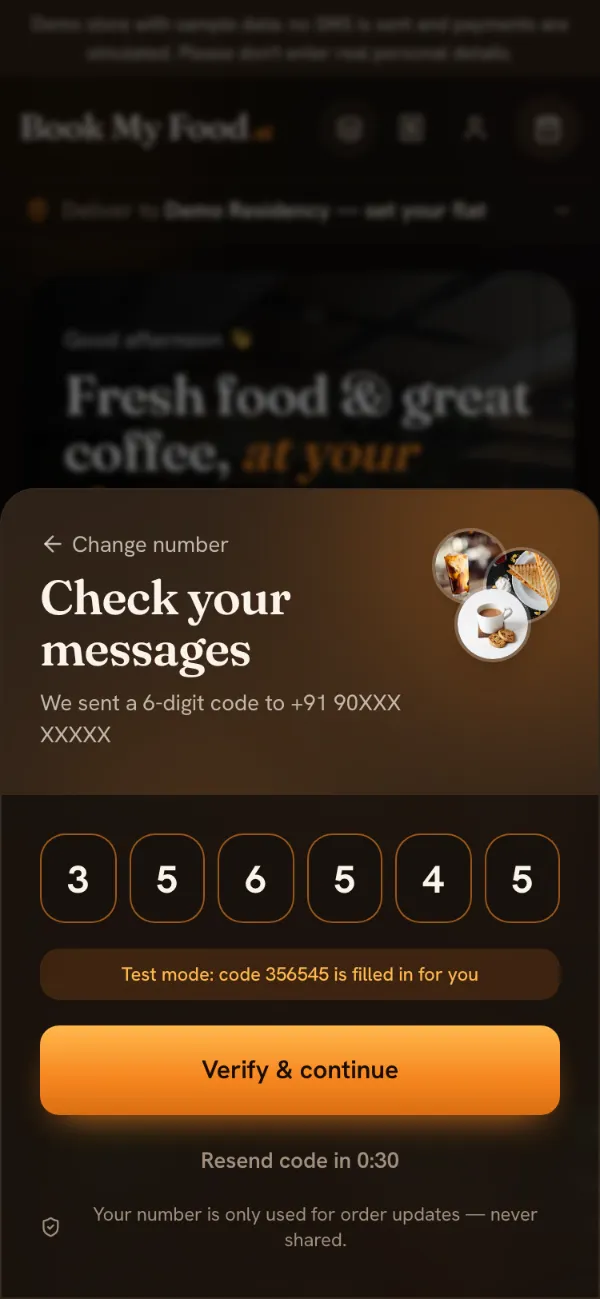
Your address is saved, and Deliver to now shows your tower, floor and flat. You can also skip this step and fill in the address at checkout.
3. Pick something and make it yours
Tap ADD on a dish. Simple items go straight into the cart; items marked Customisable open a sheet first (tapping a dish's photo opens it too). A cappuccino, for example, asks you to choose a size (Regular ₹140 or Large ₹180) and offers milk options and extras such as an extra shot or hazelnut syrup. The button at the bottom shows the price with your choices, for example Add item · ₹230 for a large cappuccino with oat milk.
A step-by-step version of this, with each sheet, is in the lesson place your first order.
4. Check out with a coupon
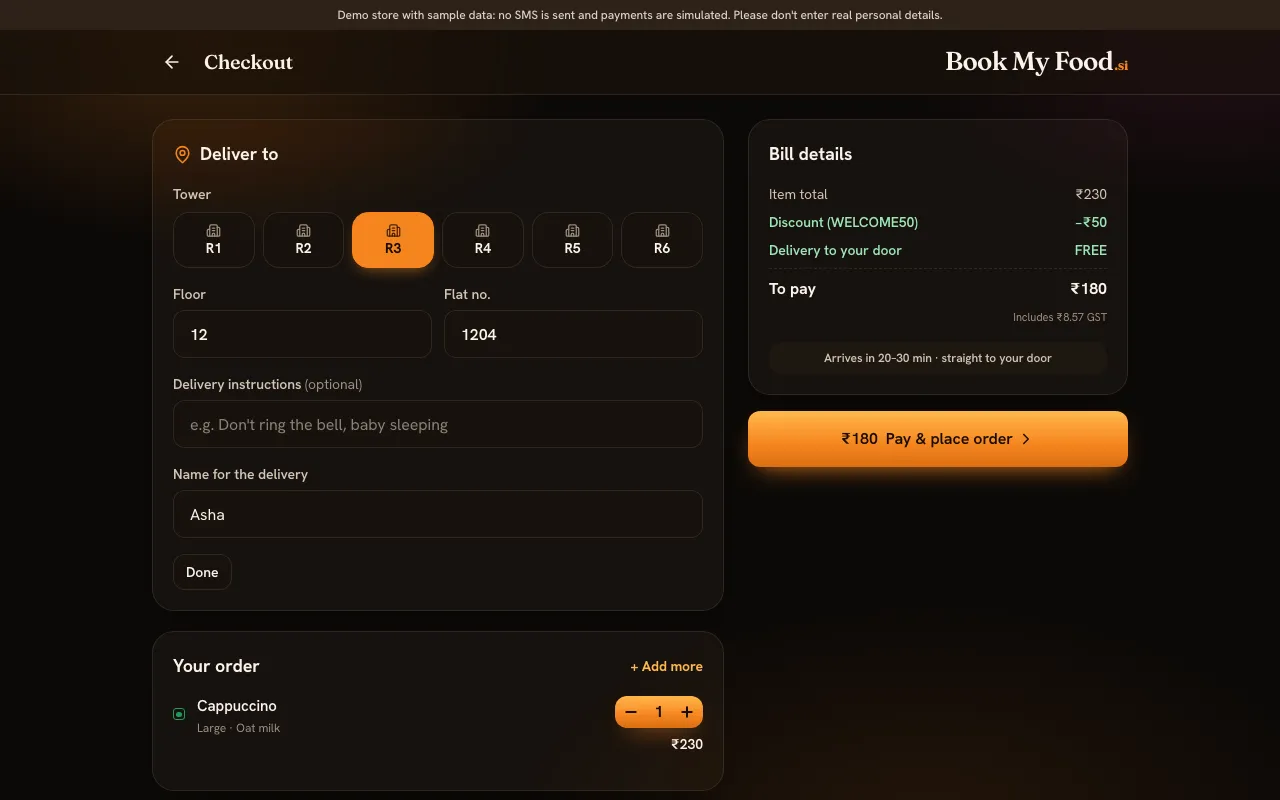
Tap View cart at the bottom of the screen on a phone, or use the cart on the right on a computer, to reach checkout. You'll see:
- Deliver to: your tower, floor and flat, with a name for the delivery.
- Your order, with steppers to change quantities.
- Complete your meal: a few drinks and sides you might add.
- Offers & coupons: tap a code to apply it.
- Pay with: UPI / Cards or Cash on delivery.
- Bill details, worked out by the server.
On the demo store, WELCOME50 takes ₹50 off your first order above ₹199. SAVE10 gives 10% off (up to ₹75) on orders above ₹299. If a code doesn't apply, the reason appears right under it.
5. Pay with the simulated gateway
Tap Pay & place order. On the demo, a payment screen marked Secure payment · Test mode opens with UPI and card options. Tap Pay ₹… to complete it.
It is worth trying Simulate a failed payment once as well. The order then waits as Awaiting payment, and the tracker offers a button to pay again or to cancel, which is exactly what happens on a live store when a UPI payment fails. Unpaid orders are cancelled automatically after 30 minutes.
6. Land on the tracker
After payment you land on the live tracker with a green Order placed! message, the order code, a six-step timeline and the usual delivery time. If the store uses delivery PINs, a 4-digit PIN appears too. We switched PINs on for these screenshots; the public demo may not show one.
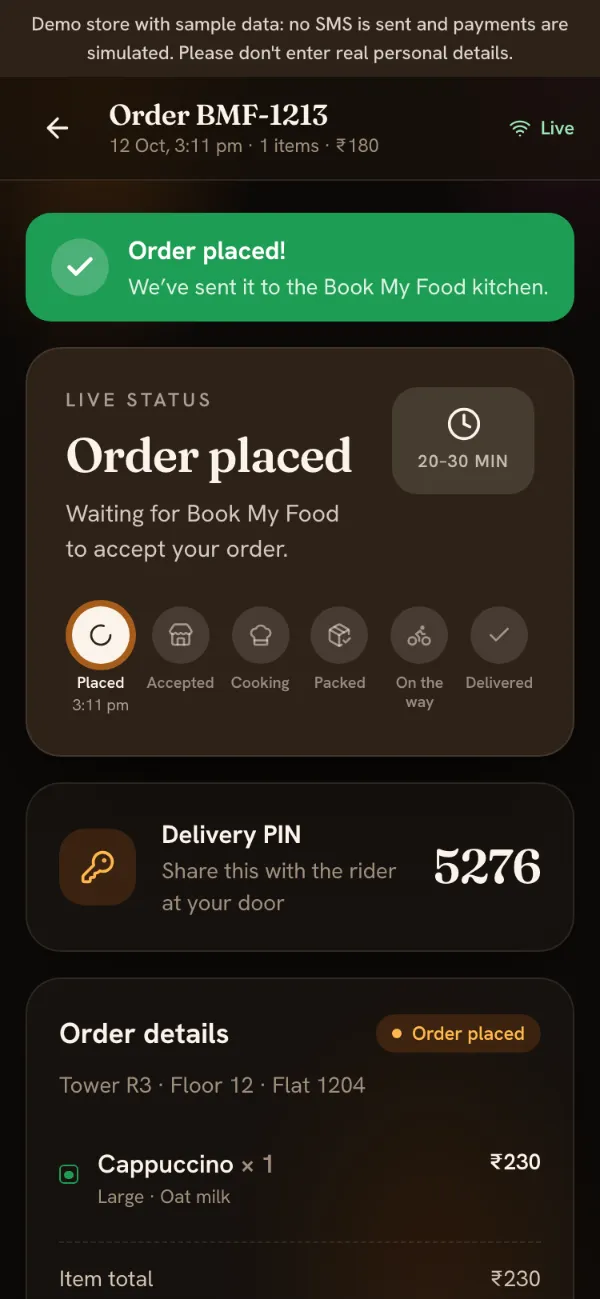
On a live store, the kitchen would now accept your order with a delivery time, and the tracker would count down, show Cooking, then On the way with the rider on a map, and finally Delivered with a request for a rating. On the demo, nobody is in the kitchen, so the order stays here. You can cancel it with Cancel order.
To see the steps that follow, with screenshots from the kitchen board and rider mode, read how one order moves from flat to kitchen to doorstep or the lesson track your order.
A few more things to try
- Themes. Tap the layers button in the header to switch between five themes. Fonts and photo shapes also change by themselves with the day of the week.
- Your orders. The receipt button in the header opens your orders, in progress and past.
- The printable menu card. /menu-card is an A4 menu with a QR code for the lifts and the lobby.
- The Android app. Get the app for Android 8 or newer. It is a preview build for now.
Your details on the demo
What you type into the demo is stored in the demo's database, like a real order would be, and the demo can be reset at any time. That is why we ask for made-up details. The draft privacy notice lists exactly what the app keeps, and how it works shows the whole resident journey on one page.
Running a cafe and wondering what this looks like from behind the counter? See Book My Food for cafes.