Lesson · Residents
Track your order to the door
Read the live tracker, follow the rider on the map, give the delivery PIN at the door, rate the order and reorder your usual in one tap.
Residents About 3 minutesUpdated
Who it's for
Residents who have placed an order and want to know where it is. If you haven't ordered yet, start with your first order.
Before you start
- An order you placed, on the web or in the Android app.
- The same login you ordered with. The tracker only shows your own orders.
Steps
Open the tracker. It opens by itself after you place an order. Later, open Your orders and tap the order under In progress. The top bar shows the order code (for example BMF-1212), its time, item count and total, and Live while updates are coming through.
Read the status. The big heading is the current step and the line under it says what is happening. The six-step timeline below fills in as the order moves: Placed, Accepted, Cooking, Packed, On the way and Delivered, each with the time it happened. A message pops up at each change, so you can keep the page open in the background.
Watch the countdown. When the kitchen accepts your order it chooses a delivery time, and the box on the right counts down the minutes to it. Before that, it shows the cafe's usual time range.
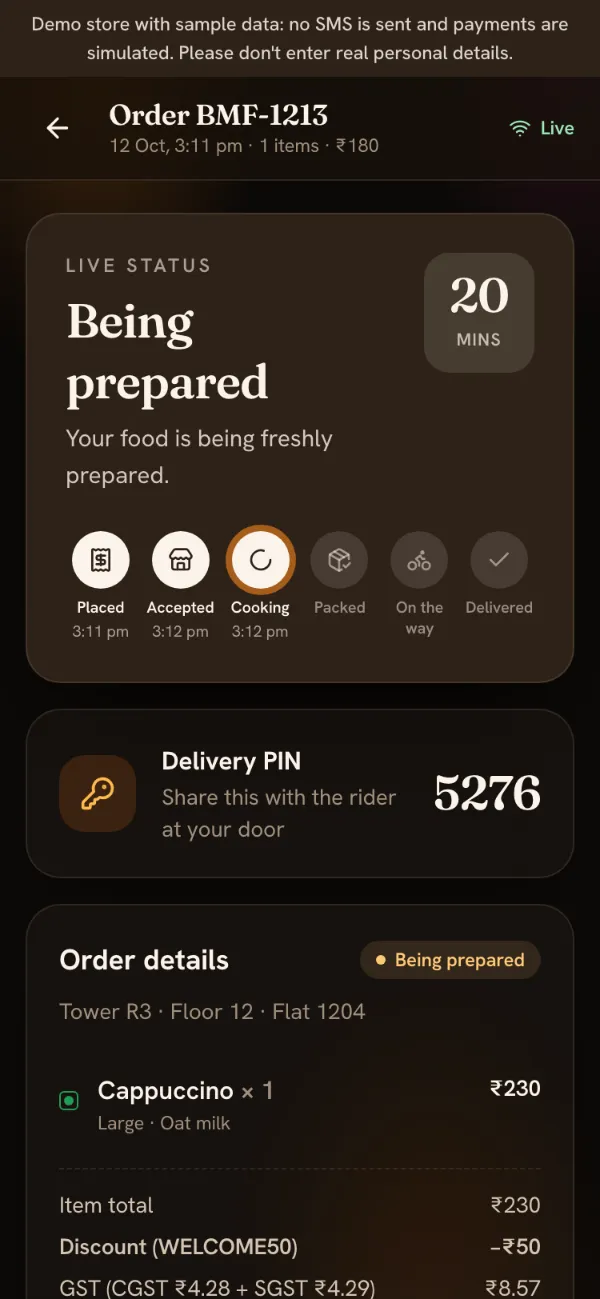
Accepted and cooking, with the countdown running. Follow the rider. Once a rider has picked up your order and is sharing their location, a map appears with three markers: the cafe ☕, your tower 🏠 and the rider 🛵, who moves as they walk over. Below the map you see the rider's name and a green call button.
Give the PIN at the door. If the cafe uses delivery PINs, a Delivery PIN card shows 4 digits. Tell them to the rider when they arrive; the rider types them in to complete the delivery. Don't share the PIN before the food is in your hands.
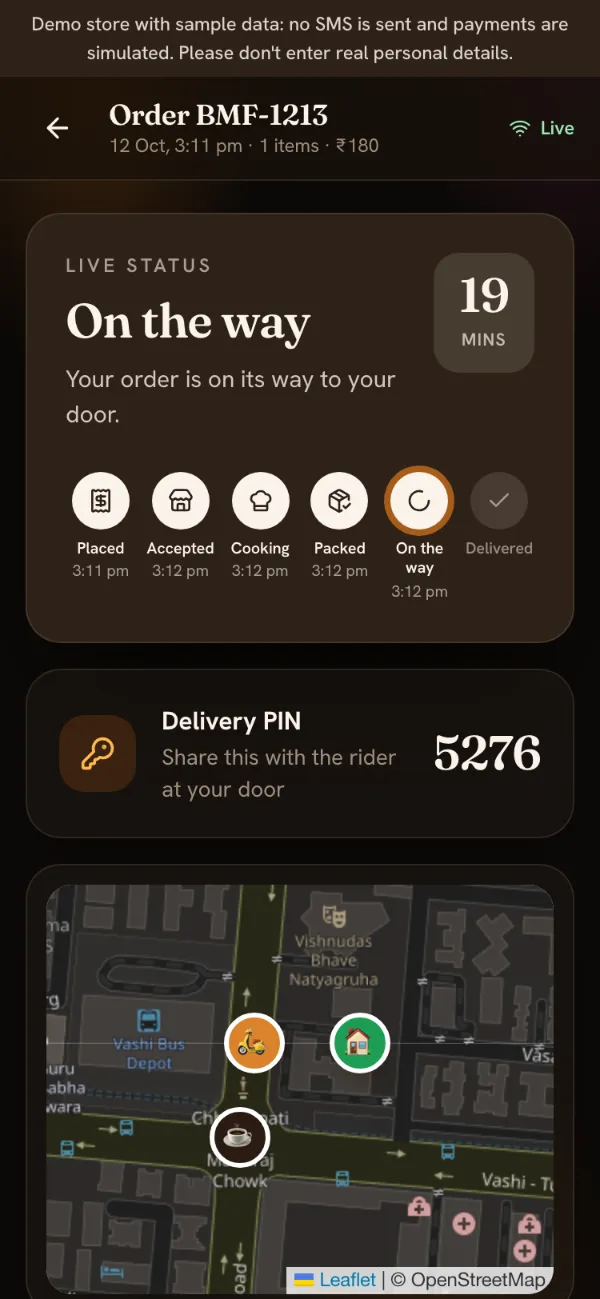
On the way: the PIN card and the live map. Rate it. When the order is delivered the card turns green and asks How was your order? Tap 1 to 5 stars, add a note if you want, and tap Submit. The cafe sees your rating and note.
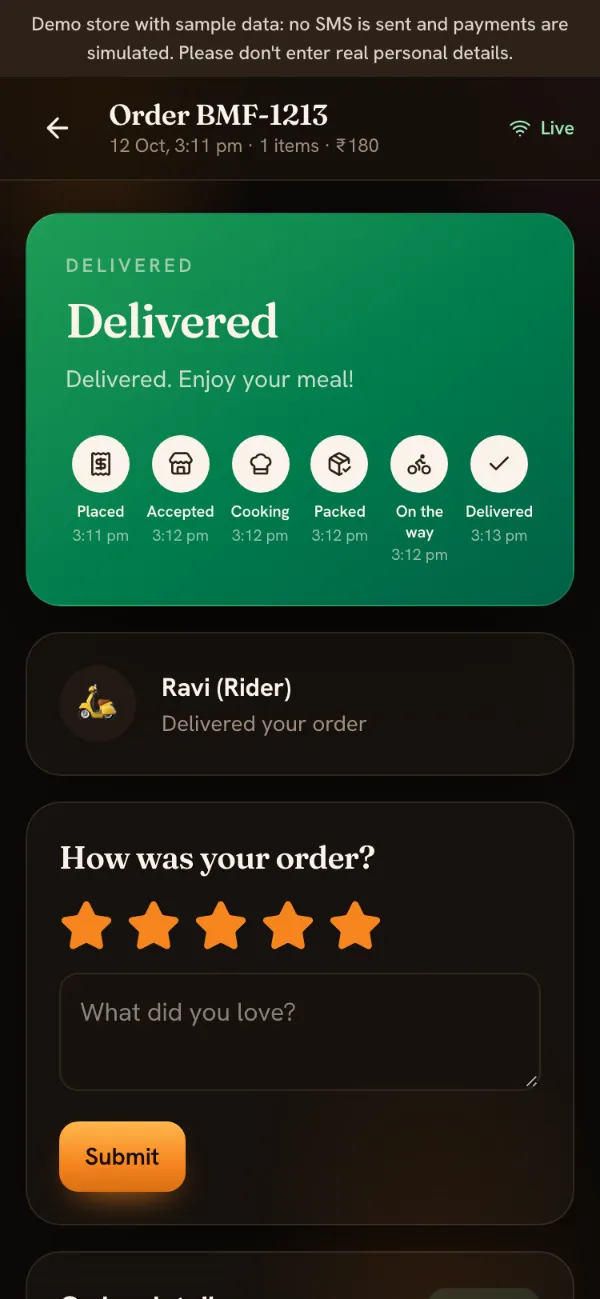
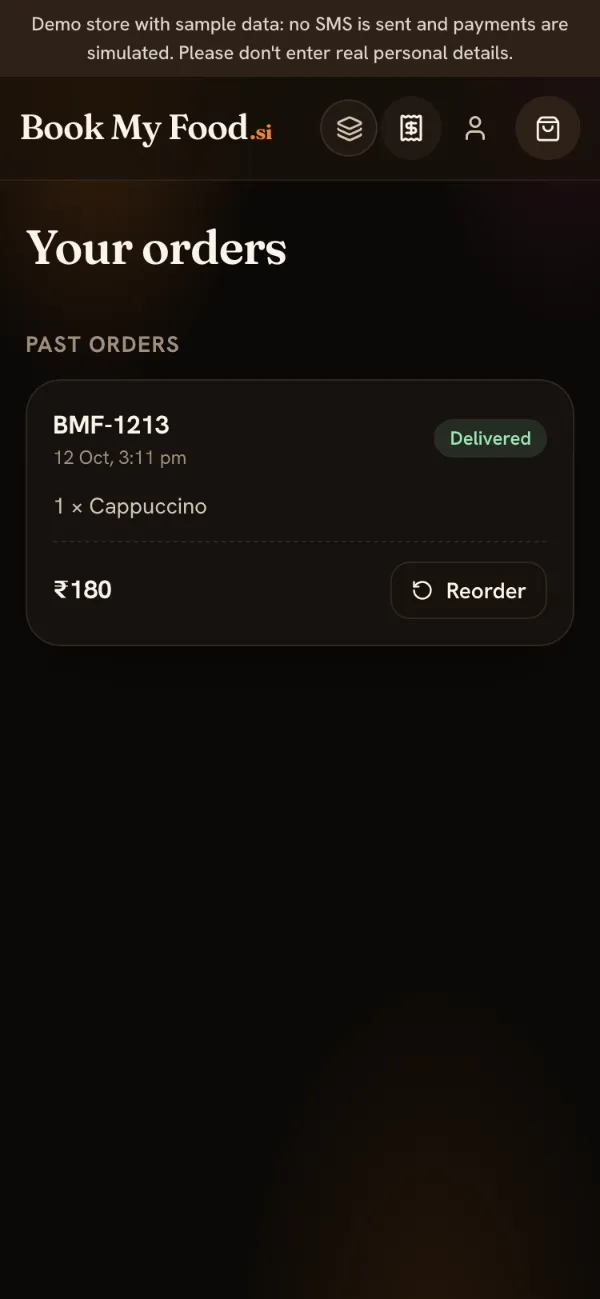
Reorder next time. Your last delivered order appears on the menu as Your usual: one tap puts it in the cart. You can also tap Reorder next to any past order in Your orders, or Order again at the bottom of a finished order. Anything sold out today is left out, and a message tells you which items.
What you should see
Each step appears on its own without refreshing, the countdown matches the time the kitchen promised, and after delivery the order moves from In progress to Past orders,.
Common mistakes
- The tracker says Offline. Your connection dropped. It reconnects by itself and reloads the order when it does.
- No map yet. The map only appears once the order is with a rider who is sharing their location. Until then you'll see the status, and “Waiting for the rider's location…” if the order is out but no position has arrived yet.
- You want to cancel. You can cancel only while the status is Order placed. After the kitchen accepts, contact the cafe. Paid orders that are cancelled are refunded automatically.
- Sharing the PIN too early. The PIN is how the rider proves the order reached the right flat; give it only at your door.
On the cafe's side the same order goes through the kitchen board and rider mode. The order lifecycle guide shows both sides together.