Lesson · Owners and managers
Day close, analytics, customers and coupons
Read today's dashboard, compare periods in Analytics, see who your regulars are, run coupons, then log expenses and lock the day in Day close.
Owners and managers About 5 minutesUpdated
Watch it first (1:10)
Recorded on the demo store with sample data; captions are on screen. Watch page with transcript. The same steps follow in text, with screenshots.
Who it's for
Owners and managers who look after the money and the numbers. Kitchen, counter and rider accounts don't see these screens.
Before you start
- An owner or manager sign-in at admin.bookmyfood.si. On the demo, staff sign in with their staff access code rather than an SMS code.
- On the demo store, every customer, order and figure in these screens is fictional demo data, generated so the charts have something to show.
Steps
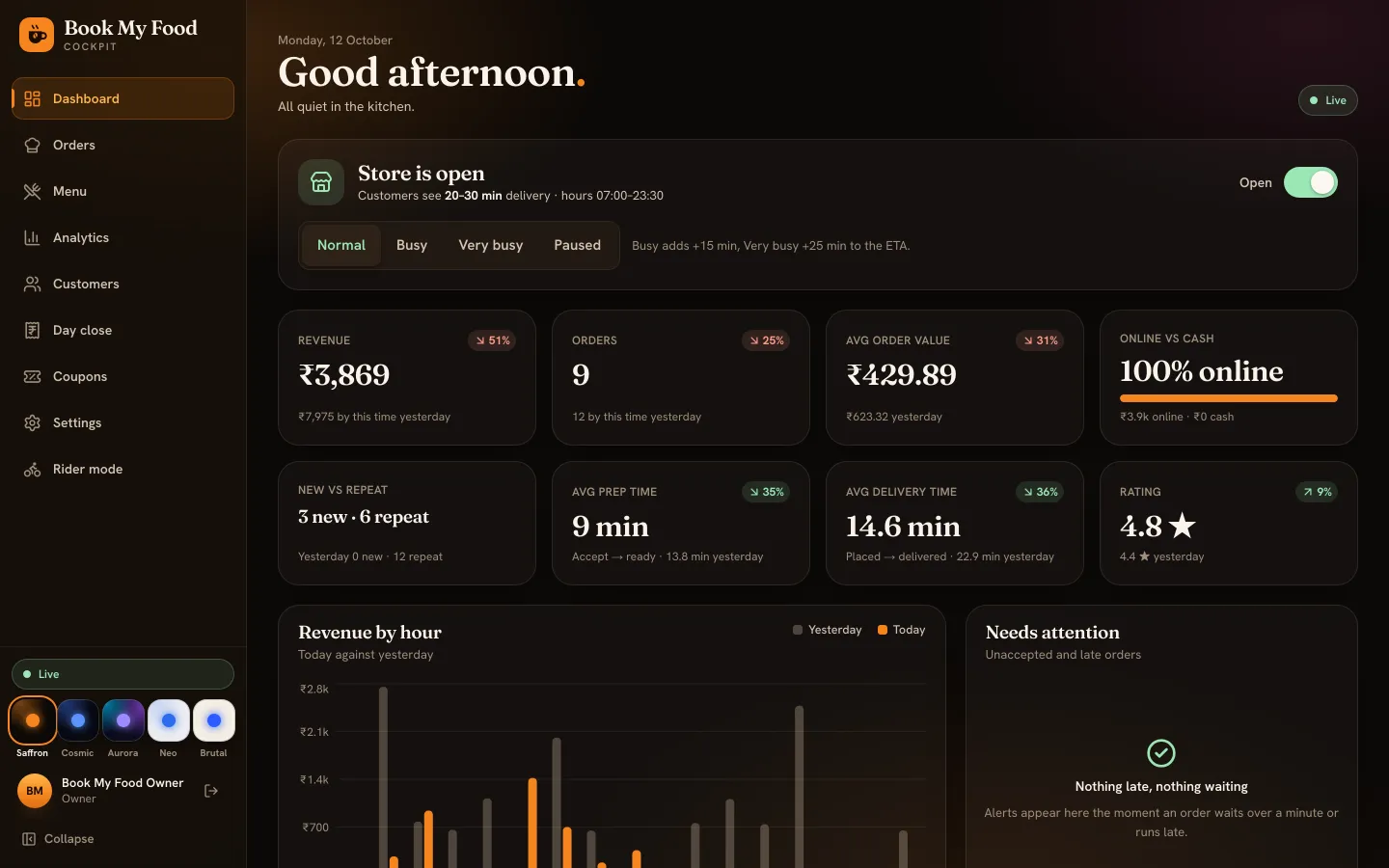
Start on the Dashboard. It is the first screen for owners and managers. At the top, the store control: open or closed, and Normal, Busy (+15 min), Very busy (+25 min) or Paused. Below, today's revenue, orders, average order value, online versus cash, new versus repeat customers, prep and delivery times and rating, each compared with yesterday at the same time. Needs attention lists orders waiting more than a minute or running late.
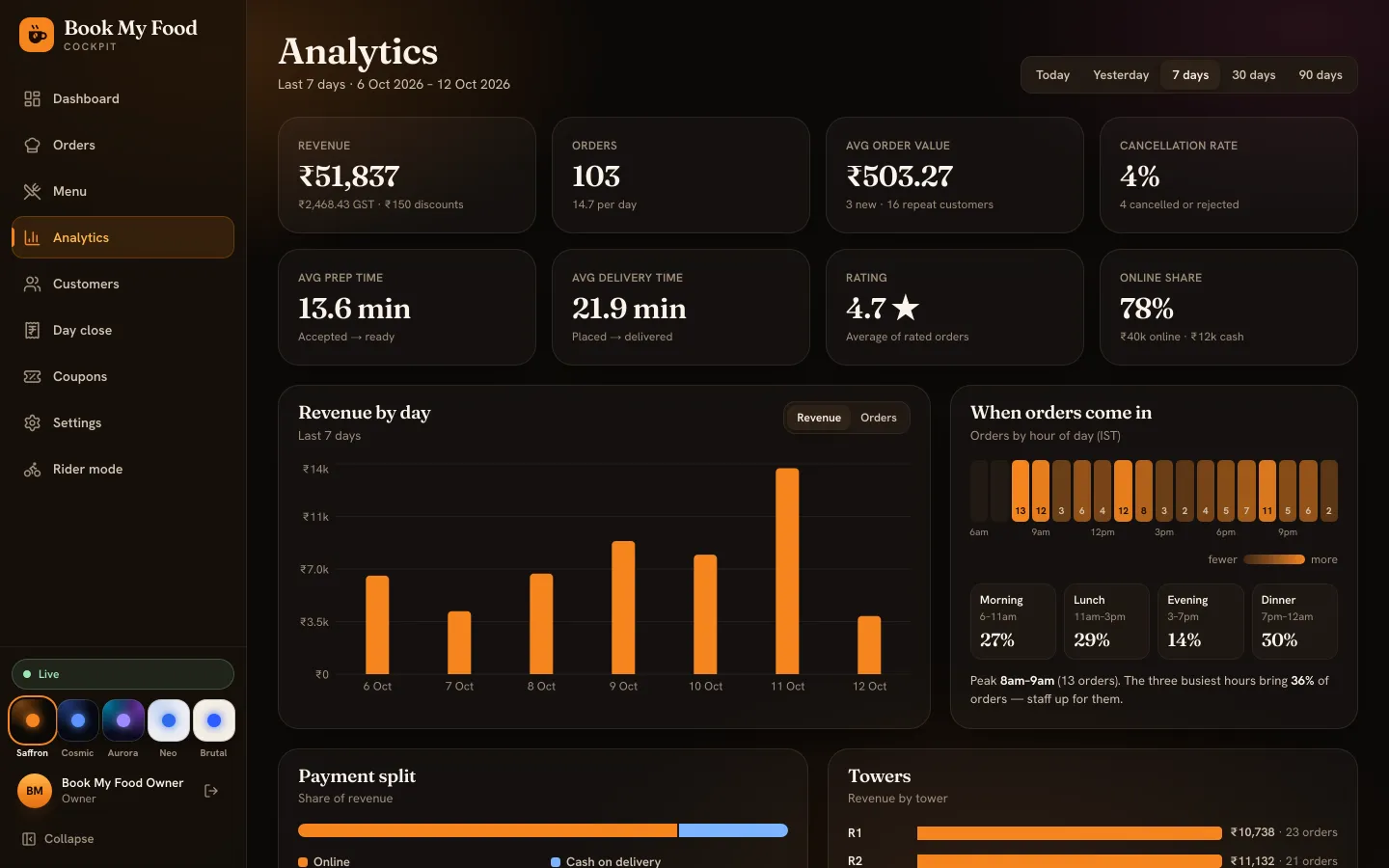
The dashboard compares today with yesterday at the same time. Compare periods in Analytics. Pick Today, Yesterday, 7 days, 30 days or 90 days. You get revenue, orders, average order value, cancellation rate, prep and delivery times, rating and online share, plus revenue or orders by day, When orders come in by hour, the payment split, revenue by tower and top items with their margins. The menu engineering chart sorts dishes into Stars, Workhorses, Puzzles and Dogs once at least three items have a cost price.
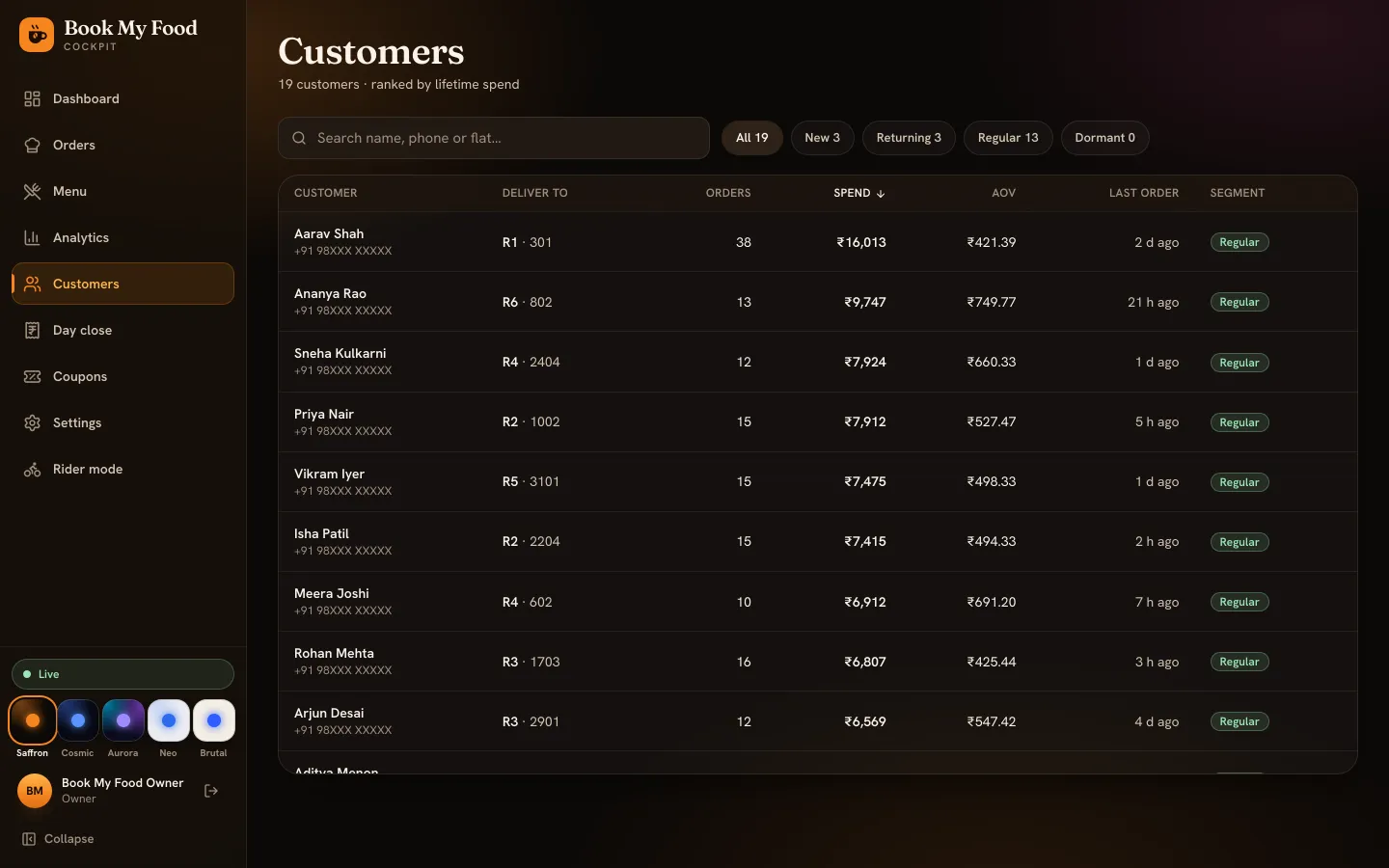
Get to know your customers. Customers ranks everyone by lifetime spend, with their flat, number of orders, spend, average order and last order, and a segment: New, Returning, Regular or Dormant. Search by name, phone or flat; open a customer to see their order history or call them.
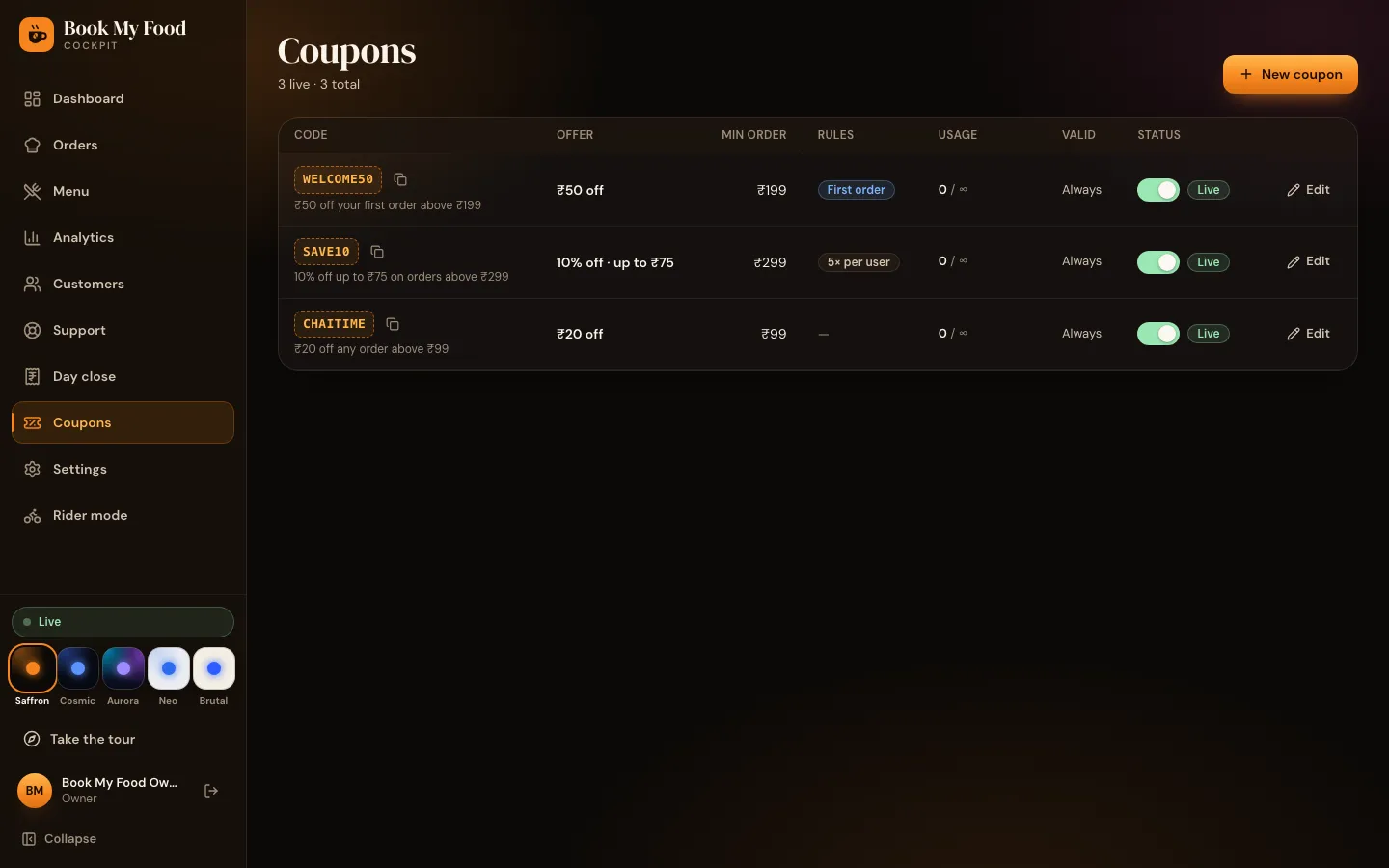
Run a coupon. In Coupons, tap New coupon and set the code, a description, Percent % or Flat ₹, a cap for percent discounts, the minimum order, total uses, uses per customer, start and end times and First order only if it is a welcome offer. The list shows each code's usage and whether it is Live, Paused, Scheduled, Expired or Used up. Pause one with its switch.
Log expenses during the day. In Day close, use Add expense: pick a category (for example groceries and produce), type the amount and a note, and add it. Only the owner can delete an expense.
Read the day. Day close shows a live preview for the chosen date: orders, gross sales, discounts, net sales, online and cash (COD) takings, refunds and average order value, then Net cash position (cash collected on delivery minus the expenses you logged), GST collected, cancelled orders, new and repeat customers and the top item. Print gives you a paper copy.
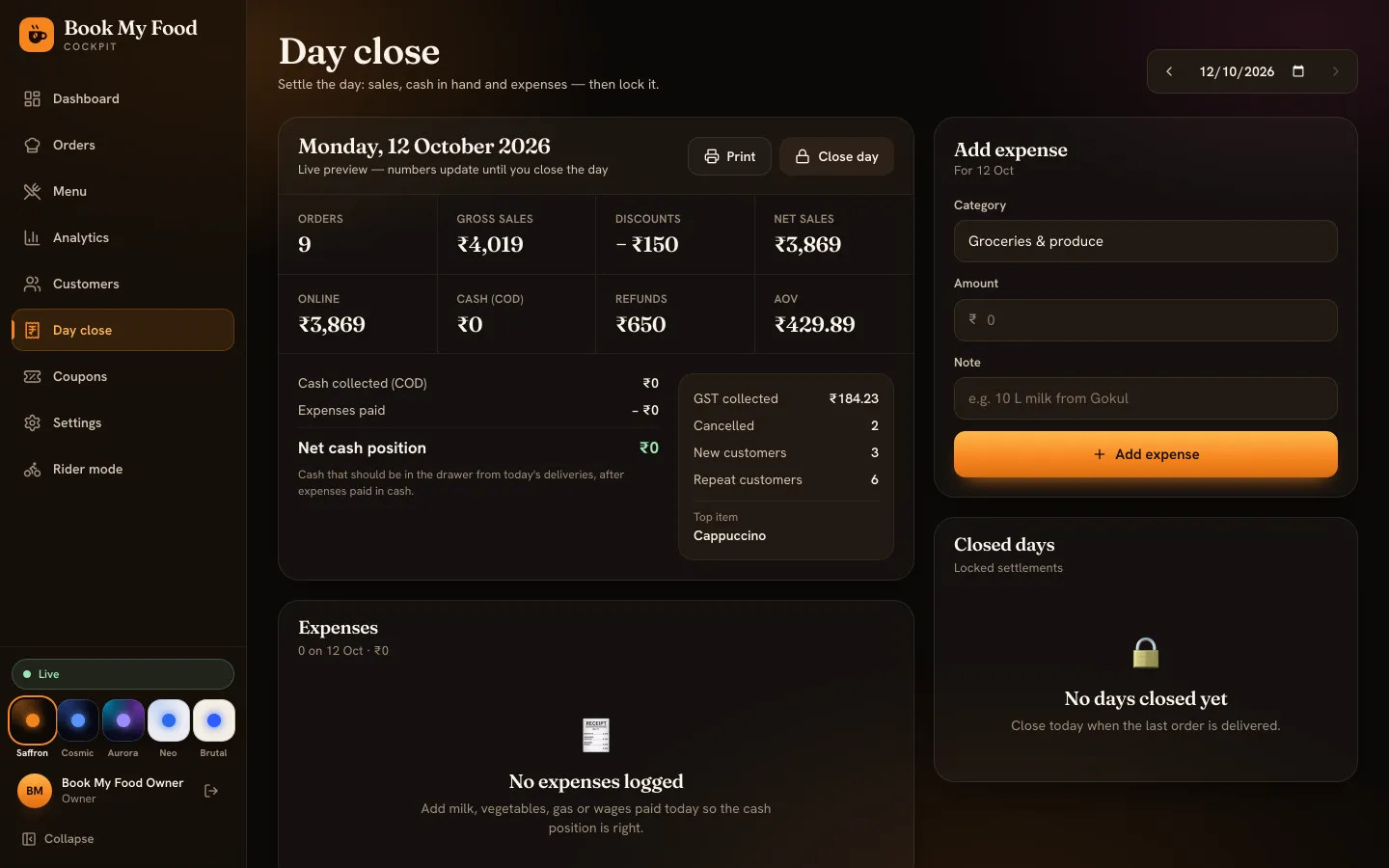
Numbers update live until you lock the day. Lock the day. When the last order is delivered, tap Close day and confirm Lock the day. The totals are saved as they are and listed under Closed days, and the close is recorded in the audit log.
What you should see
Today's figures on the dashboard match the Day close preview, every cash expense is in the list, and after locking, the day appears under Closed days with its saved totals.
Common mistakes
- Closing before the last delivery. Lock the day only when nothing is still on its way; the saved totals don't change afterwards.
- Expecting a cash-count box. Day close doesn't ask you to count the drawer. Count it yourself and compare with Net cash position.
- Logging non-cash expenses. Every expense you add is subtracted from the net cash position, whatever way you paid it, so log only cash spent from the drawer if you want that figure to match the drawer.
- Reading demo numbers as real. On the demo store the history is generated; use it to learn the screens, not to judge demand.
Related: manage the menu and sold out, and the guide moving a society cafe off WhatsApp and the notebook.