Lesson · Kitchen staff
Run the kitchen board
Accept new orders with an ETA, move them through preparing and ready, print the kitchen ticket (KOT) and keep the new-order chime working.
Kitchen and counter staff About 4 minutesUpdated
Watch it first (1:07)
Recorded on the demo store with sample data; captions are on screen. Watch page with transcript. The same steps follow in text, with screenshots.
Who it's for
Kitchen and counter staff (and owners or managers) who take orders off the board, usually on a counter tablet or a laptop in the kitchen.
Before you start
- A staff sign-in. Open admin.bookmyfood.si and enter the mobile number the owner added for you under Settings → Staff. On a live store you get a 6-digit code by SMS. On the demo, staff sign in with their staff access code instead (no SMS is sent); ask us for a demo if you need one.
- Kitchen staff land straight on Orders, the kitchen board. Owners and managers find it in the sidebar.
- For printed kitchen tickets: an 80 mm receipt printer set up as a normal printer on the device.
Steps
Turn the sound on. When the board opens, an orange banner says Tap to enable sound. Tap it once: browsers keep sound muted until you interact with the page. From then on a short chime repeats every few seconds for as long as any order is waiting in New, and stops when none are left. The speaker button at the top turns the chime off and on for this device.
Read the new card. Each card shows the order code, a timer since it was placed, the tower and flat with the floor, the customer's name, PAID or cash, and every item with its size, add-ons and notes.
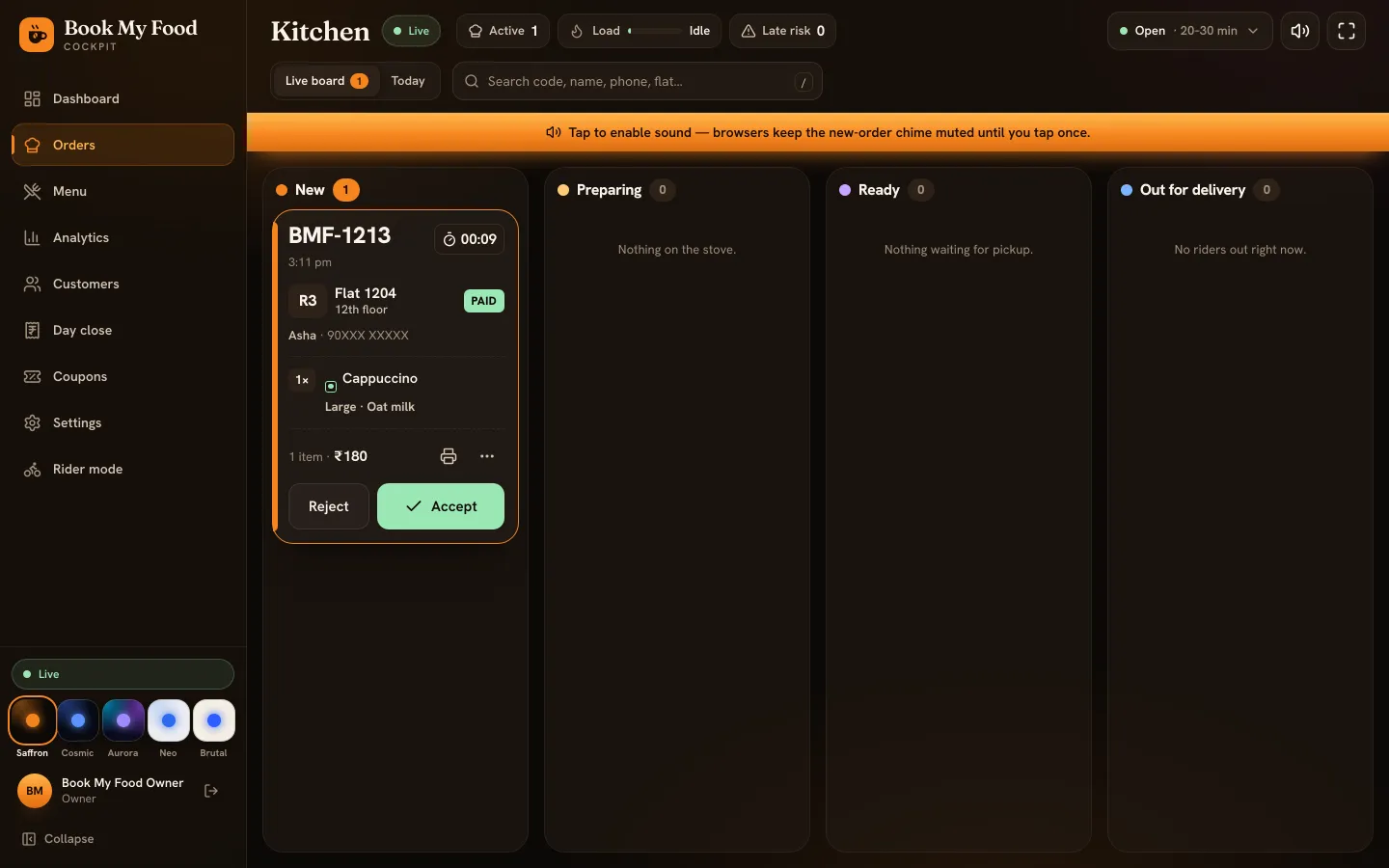
New orders wait in the first column and keep chiming until someone accepts. Accept with an ETA. Tap Accept, then pick how many minutes until the food reaches the door: 10, 15, 20, 30 or 45. The highlighted choice is the store's usual maximum (plus extra time in busy mode). The resident's tracker starts counting down to it, and the order gets its GST invoice number. Tap Back if you opened it by mistake.
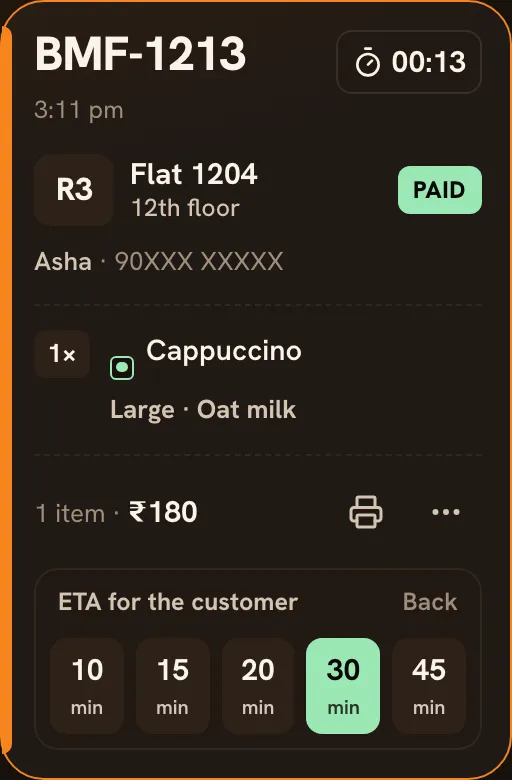
Pick the time you can actually deliver in. Or reject with a reason. Tap Reject, choose a reason (item sold out, kitchen too busy, closing soon, can't deliver to this flat, duplicate order) or type one, then Reject order. The resident sees the reason. If they had paid online, the refund starts automatically.
Print the kitchen ticket. Tap the printer icon on the card. An 80 mm ticket opens and prints, with the order code, tower and flat, the items with their options, and PAID or the cash to collect. To print every order as soon as it is accepted, turn on Auto-print KOT on accept under Settings → This device.
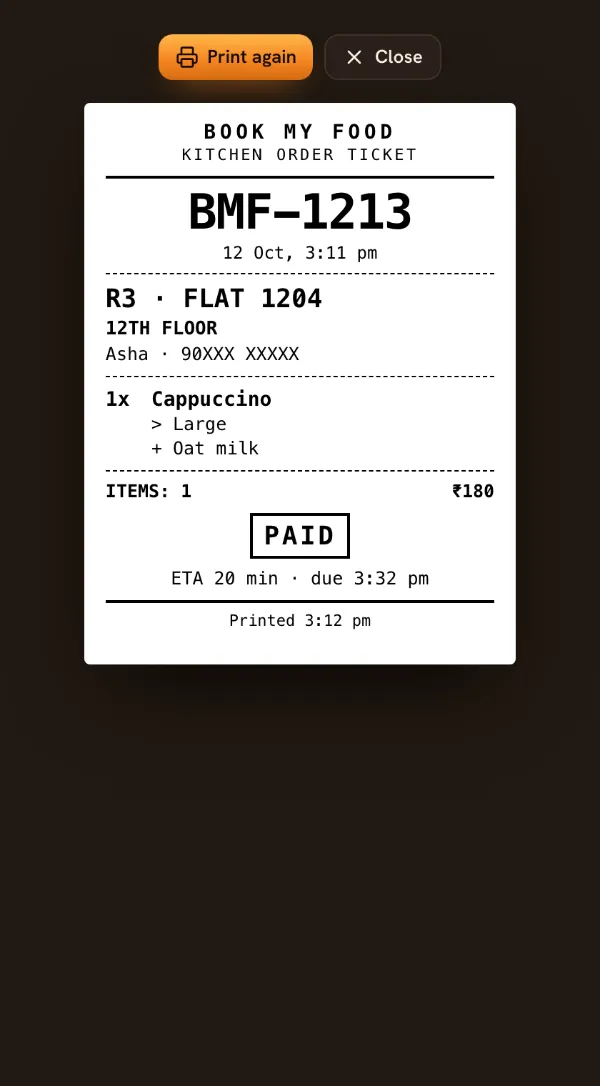
The KOT shows everything the cook needs and nothing else. Start preparing, then mark ready. Tap Start preparing when cooking begins and Mark ready when it is packed. The card shows when it is due; it turns red if it runs late, and Late risk at the top counts orders due within 5 minutes.
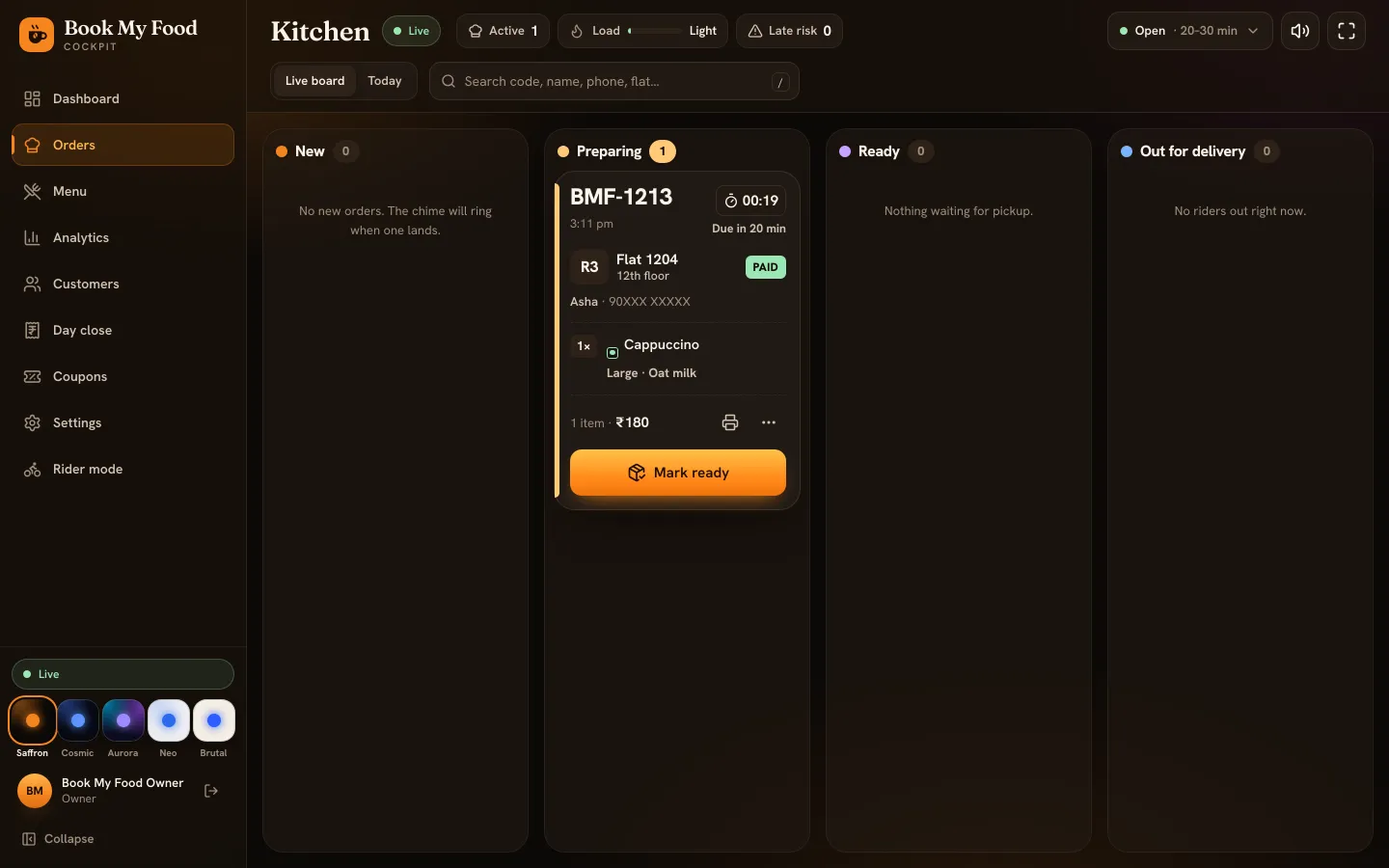
Hand it to a rider. Ready orders appear in rider mode for riders to claim. You can also pick a rider from Assign rider… on the card, or tap Out for delivery yourself. If the resident collects at the counter, use Picked up at counter? Mark delivered.
What you should see
The New column is empty and silent, every order you are cooking is in Preparing with a due time, and packed orders sit in Ready until a rider takes them. The resident's tracker follows each tap within a second or two.
Common mistakes
- No chime. The sound banner hasn't been tapped since the page was opened, the speaker button is off, or the device volume is down. Settings → This device → Test chime plays it once.
- Tapping a card right after opening the board. Your first tap anywhere also switches the sound on, which removes the banner and shifts the board up, so that tap can miss its button. Tap the banner first.
- Accepting with an ETA you can't meet. The resident sees a countdown to that time. In a rush, pick a longer time or ask the owner to switch on busy mode.
- Forgetting Mark ready. Riders only see orders that are ready, so a packed order left in Preparing just waits.
- Marking delivered from the board. That skips the delivery PIN. Leave delivery to the rider unless the resident collected at the counter.
The resident sees all of this on their tracker: see track your order. Next in the chain: rider deliveries.