Lesson · Riders
Deliver orders in rider mode
Claim ready orders, share your live location with residents, start the delivery and complete it with the resident's delivery PIN.
Delivery riders About 3 minutesUpdated
Watch it first (1:10)
Recorded on the demo store with sample data; captions are on screen. Watch page with transcript. The same steps follow in text, with screenshots.
Who it's for
Riders who carry orders from the counter to the flats, on their own phone. Owners and managers can use rider mode too, for example when they deliver themselves.
Before you start
- A rider sign-in. Open admin.bookmyfood.si on your phone and sign in with the number the owner added for you as a rider. On the demo, staff sign in with their staff access code instead of an SMS code. Riders go straight to rider mode.
- Location permission. Your browser will ask to use your location the first time you share it. Allow it, or residents won't see you on their map.
- The Android app has the same rider mode. There, your location is shared on its own while one of your orders is out for delivery, as long as the app is open.
Steps
Check your summary. The three tiles at the top show Delivered today, With me (orders you are carrying) and Cash to collect.
Claim a ready order. Orders that are packed and have no rider appear under Ready to pick up, with the tower, floor, flat, item count and whether it is paid. Tap Claim to take one. If another rider got there first, you'll be told it is already assigned. The kitchen can also assign an order to you; it then appears under My deliveries straight away.
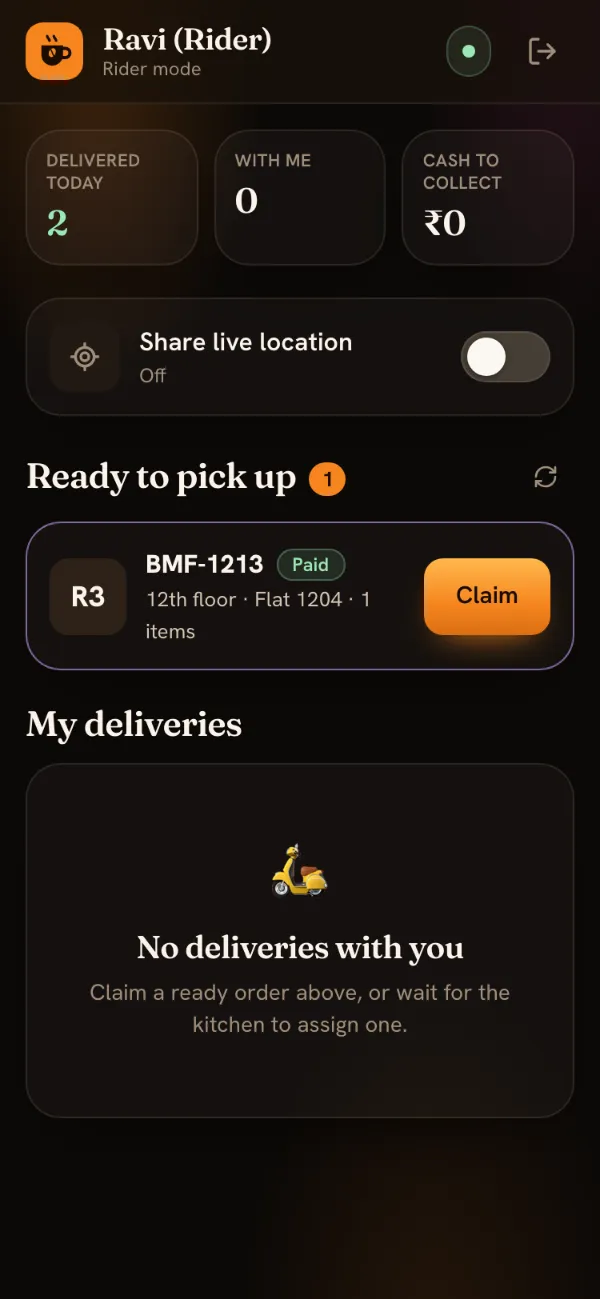
Ready orders wait here until a rider claims them. Turn on Share live location. Flip the switch. It shows when your position was last sent and how accurate it was. Your position is sent at most every 8 seconds, and rough readings (worse than about 50 m) are skipped. It stays on until you switch it off.
Start the delivery. Your orders are grouped by tower with the floors in order, so one lift trip can cover several flats. Each card shows the flat, the customer's name, the promised time, a call button and either Paid online — nothing to collect or Collect ₹… cash. Pick up the bag and tap Start delivery (or Start all for a whole tower). The resident's tracker changes to On the way and shows you on the map.
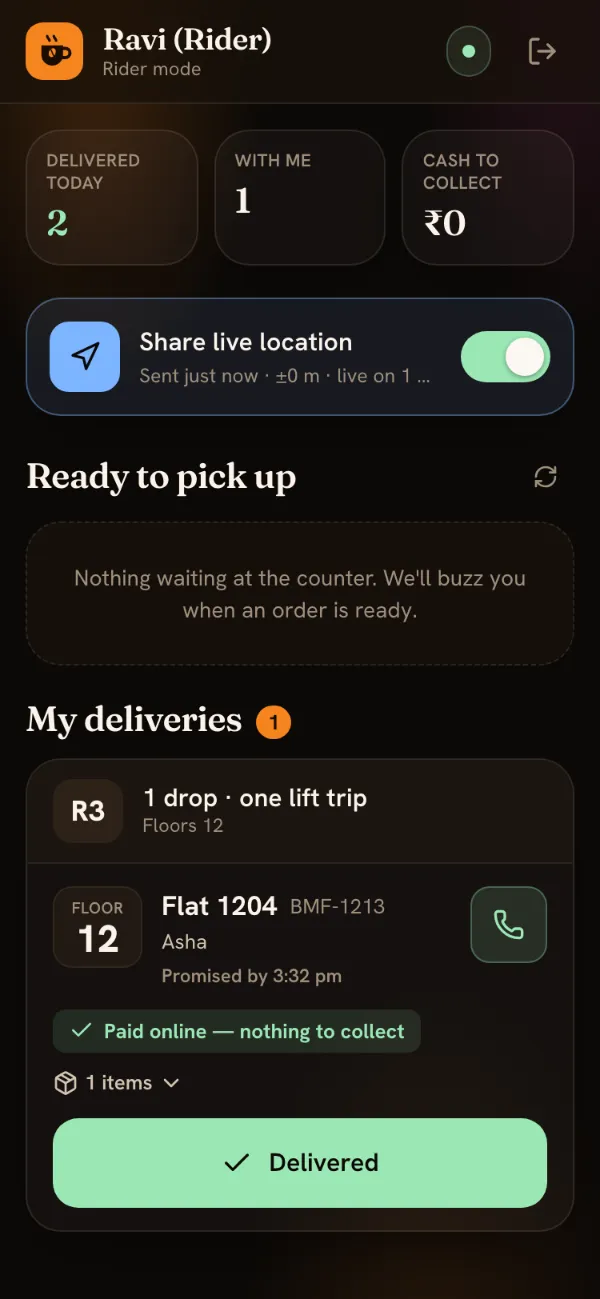
On the way: location on, one drop, nothing to collect. Deliver with the PIN. At the door, hand over the order and tap Delivered. If the store uses delivery PINs, a box asks for the 4-digit PIN the resident sees in their app. Type it and tap Confirm delivery. For cash orders, collect the amount shown on the card.
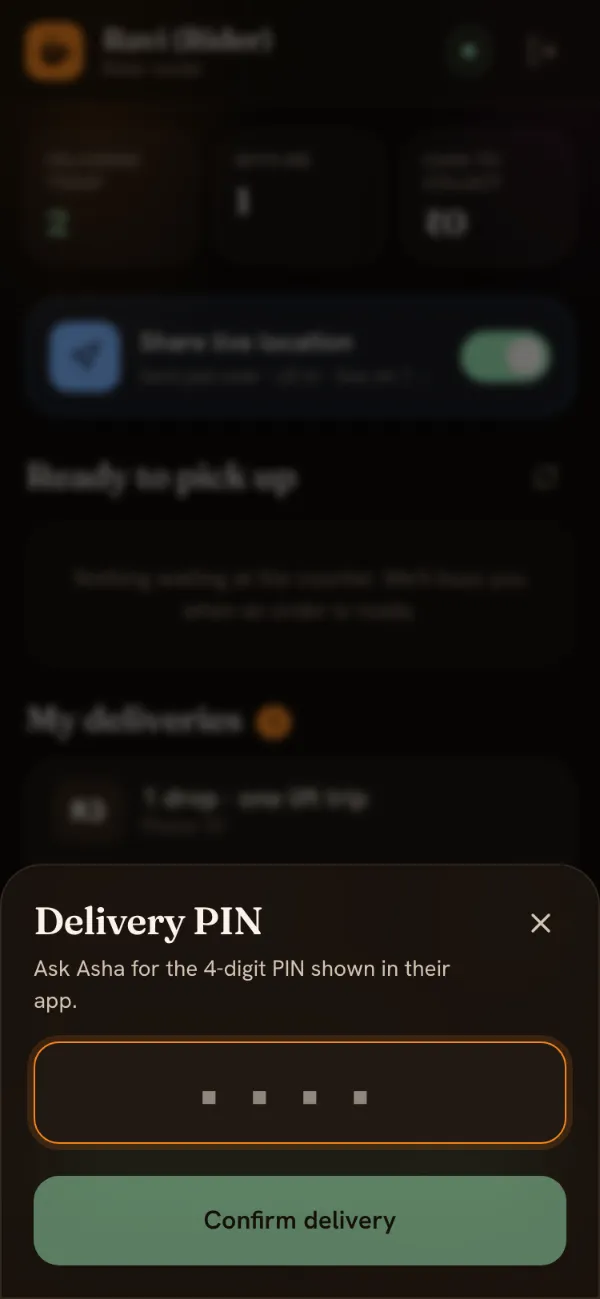
Switch location off when you are back at the counter and have nothing left to deliver.
What you should see
The order disappears from My deliveries, Delivered today goes up by one, and the resident's tracker shows Delivered and asks them to rate the order.
Common mistakes
- “Delivery PIN does not match.” Ask the resident to read the PIN from their tracker again. Never guess or skip it: the PIN is how the store knows the order reached the right person.
- Residents can't see you on the map. Location sharing is off, or the browser was refused permission. Turn the switch on and allow location for the site.
- Leaving location on all day. The web switch doesn't turn itself off after a delivery. Switch it off when you are done.
- Card says “Being prepared — wait at the counter”. The kitchen assigned the order to you before it was ready. Wait until it moves to ready, then start the delivery.
Before an order reaches you it goes through the kitchen board. What the resident sees meanwhile: track your order.