- How it works
- Order lifecycle
- For cafes
How one order moves from flat to kitchen to doorstep
Every status of a Book My Food order, from payment_pending to delivered, who is allowed to move it, and what the resident, the kitchen and the rider see at each step.
By Book My Food team · Published · Updated · 7 min read
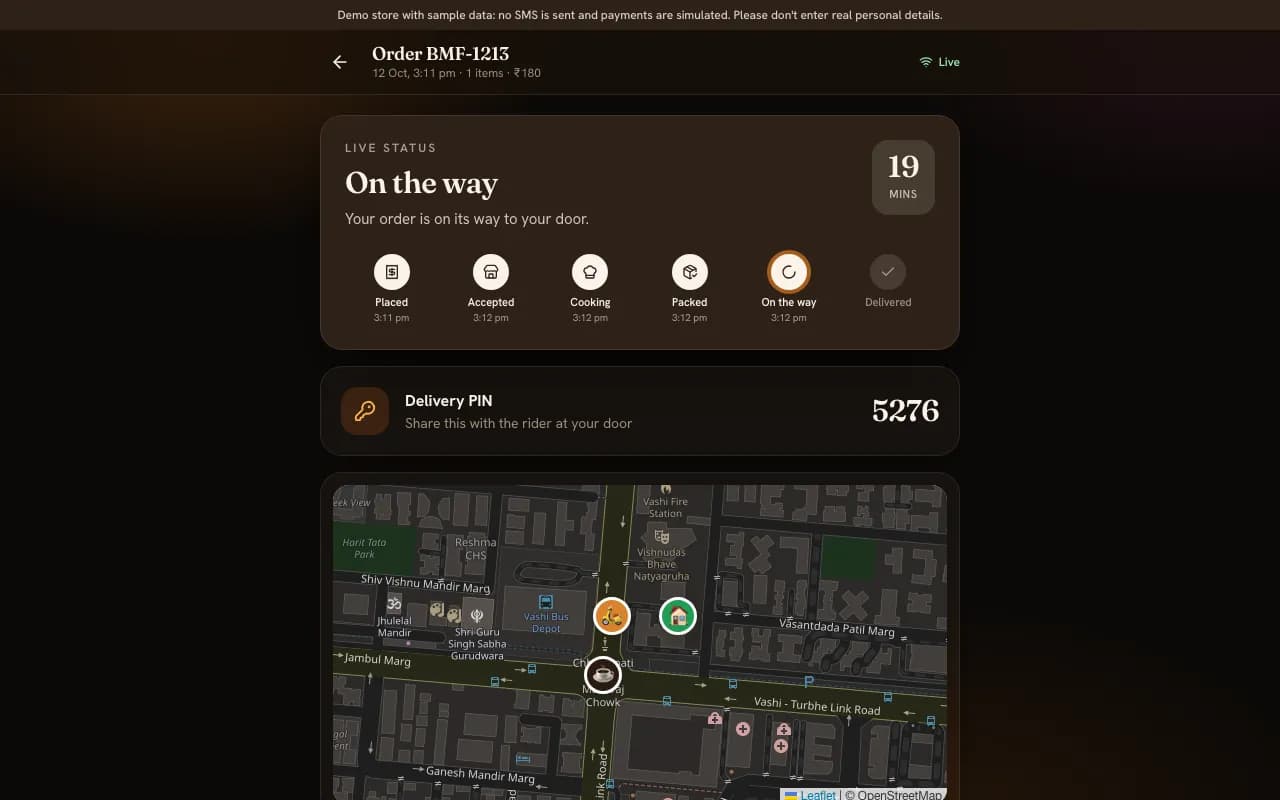
To take the screenshots on this site we placed one real order on a local copy of the demo store: a large cappuccino with oat milk for flat 1204 on the 12th floor of tower R3, paid by (simulated) UPI with the WELCOME50 coupon. This article follows that order through every step, and shows what each person sees along the way.
Every Book My Food order moves through the same statuses, in this order:
payment_pending → placed → accepted → preparing → ready → out_for_delivery → delivered
Two more statuses end an order early: rejected (the cafe can't take it) and cancelled.
The whole path on one page
| Status | Moved there by | The resident sees | The kitchen sees | The rider sees |
|---|---|---|---|---|
payment_pending | Checkout, for UPI or card | Payment screen; then Awaiting payment if it isn't finished | Nothing yet | Nothing |
placed | The server, once payment is verified (cash orders start here) | Order placed, waiting for the cafe; can cancel | A new card in New, chiming | Nothing |
accepted | Staff, choosing an ETA | Accepted and a countdown | The card moves to Preparing | Nothing yet |
preparing | Staff | Being prepared | Due time on the card; ticket printed | Nothing yet |
ready | Staff | Ready for pickup | The card moves to Ready | The order under Ready to pick up |
out_for_delivery | The rider (or staff) | On the way, rider on the map, PIN | The card moves to Out for delivery | The order under My deliveries |
delivered | The rider with the PIN (or staff) | Delivered; rate and reorder | The card leaves the board | Delivered today goes up |
The rules: who can move an order
The order of statuses isn't just a convention in the screens. The server holds a table of which moves are allowed and who may make each one, and refuses anything else, whichever app the request comes from:
- payment_pending → placed: only the system, after it has verified the payment. Residents, staff and the system can cancel an unpaid order.
- placed → accepted or rejected: staff only. The resident can still cancel at this point, and so can staff.
- accepted → preparing → ready: staff only. Staff can also cancel at these steps.
- ready → out_for_delivery: staff or a rider. ready → delivered directly is allowed for staff, for orders collected at the counter.
- out_for_delivery → delivered: staff or the rider.
Nothing can jump ahead. An order can't go from placed to delivered, or back from delivered to anything else. Each change is saved with the time, the new status, the previous one and the name and role of the person who made it, and it is pushed to every open screen at once.
1. payment_pending: checkout
At checkout the resident's cart goes to the server, which works out the bill from the current menu, applies the coupon if its conditions are met, and adds any fees and GST. The prices the phone displayed are never trusted. Each checkout attempt carries a unique key, so tapping the button twice, or a shaky connection retrying, can't create two orders.
For UPI or card, the order is created as payment_pending and the payment screen opens. On a live store that is Razorpay; on the demo it is a test screen with Pay and Simulate a failed payment.
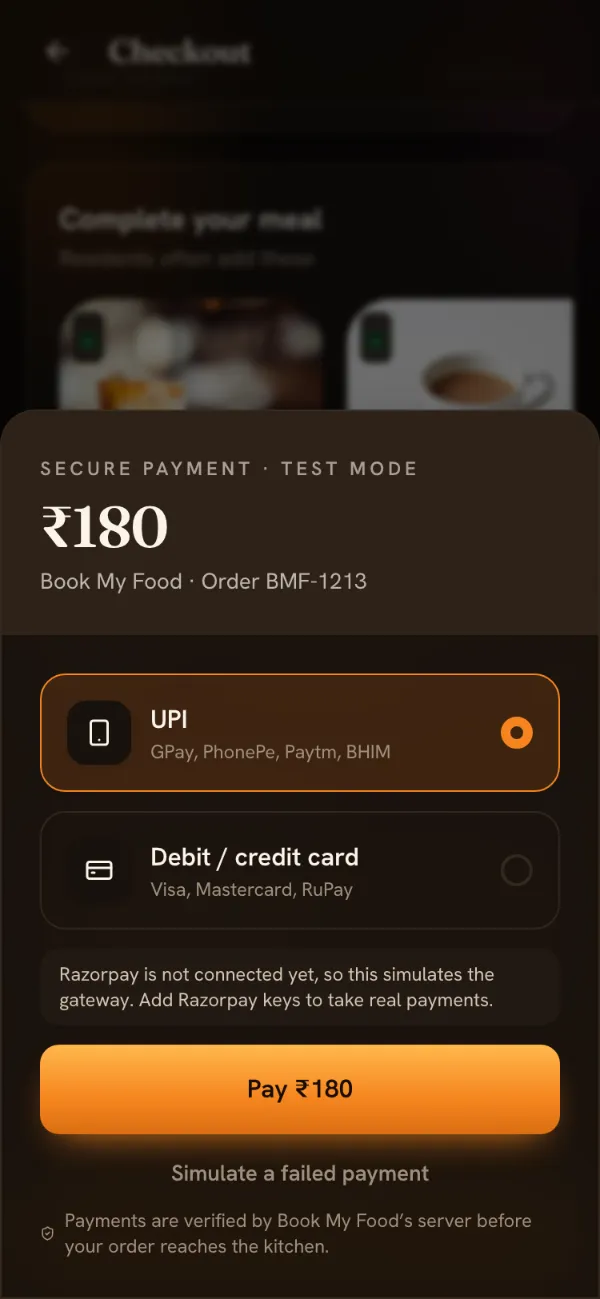
The order only moves on when the server has checked the payment: the signature Razorpay returns to the checkout, or Razorpay's own notification to the server, whichever arrives first. Both paths are safe to run twice. If the resident closes the payment screen, the order waits as Awaiting payment with a Pay ₹… now button; if nobody pays within 30 minutes, it is cancelled automatically with the reason “Payment not completed”.
Cash on delivery skips this step: the order is created directly as placed.
2. placed: the kitchen hears it
The moment an order is placed it appears in the New column of the kitchen board, and the board chimes every few seconds until someone accepts it. Staff signed into the Android app also get a “New order” notification. If an order waits for more than a minute, the staff screens get an alert.
The resident sees Order placed with the line “Waiting for Book My Food to accept your order.” This is the only stage at which the resident can cancel by themselves.
3. accepted: a promise with a time on it
Accepting means choosing an ETA: 10, 15, 20, 30 or 45 minutes. The highlighted suggestion is the store's usual maximum, plus extra in busy mode. That choice becomes the promised time.
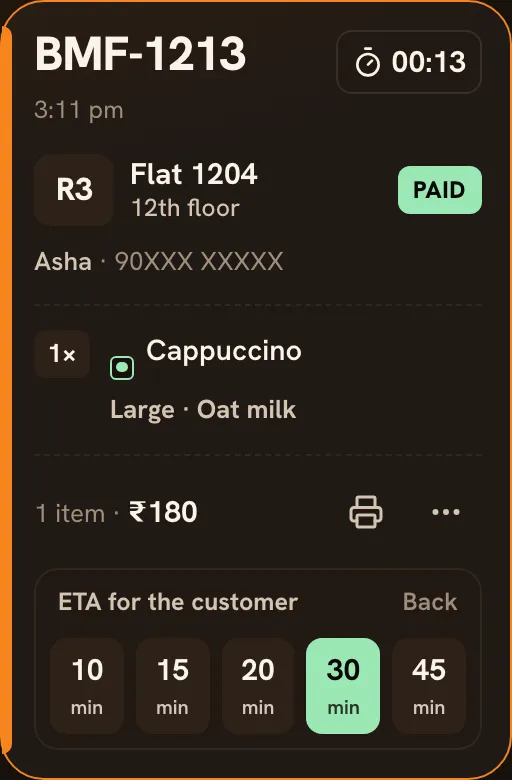
Two things happen on the server at the same moment. The resident's tracker starts counting down to the promised time, and the order gets its GST invoice number, in the form BMF/2026-27/00001 on the demo store. Numbering at acceptance means orders that are rejected or never paid don't leave gaps in the invoice series.
If the kitchen can't take the order, it rejects it with a reason the resident can read. A paid order that is rejected or cancelled is refunded automatically: the order shows Refund in progress until the payment provider confirms the refund.
4. preparing: cooking against the clock
Start preparing moves the card along. The kitchen ticket (KOT) can be printed from the card, or automatically on acceptance. The card shows when the order is due and turns red if it is late, and the Late risk counter at the top of the board shows how many orders are due within five minutes. If an accepted order passes its promised time, the staff screens get an alert.
The resident's timeline now shows Cooking.
5. ready: waiting for a rider
Mark ready puts the order in the Ready column, and every rider sees it under Ready to pick up with its tower, floor and flat. A rider taps Claim, or the kitchen picks a rider from the card. If the resident has come down to collect it, staff can mark it delivered from here.
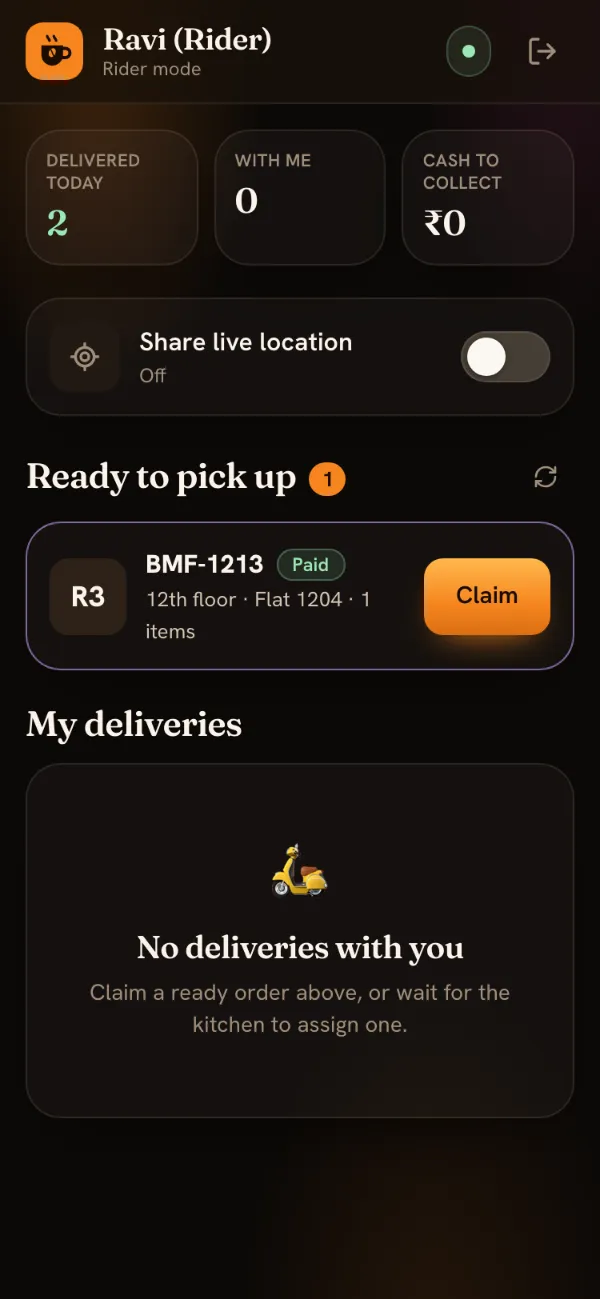
6. out_for_delivery: the rider on the map
When the rider taps Start delivery, the order is On the way. Riders' orders are grouped by tower with floors in order, so one lift trip can serve several flats. While the rider shares their location, the resident's tracker shows a map with the cafe, their tower and the rider moving between them, plus the rider's name and a call button. The rider's position is sent at most every 8 seconds and only the latest one is kept.
If the store uses delivery PINs, the resident's tracker has shown a 4-digit PIN since the order was placed. See track your order.
7. delivered: the PIN, the cash and the rating
At the door the rider taps Delivered. With delivery PINs switched on, the rider has to type the resident's PIN, and a wrong PIN is refused. For cash orders, delivery also marks the cash as collected, which is how Day close knows what should be in the drawer.
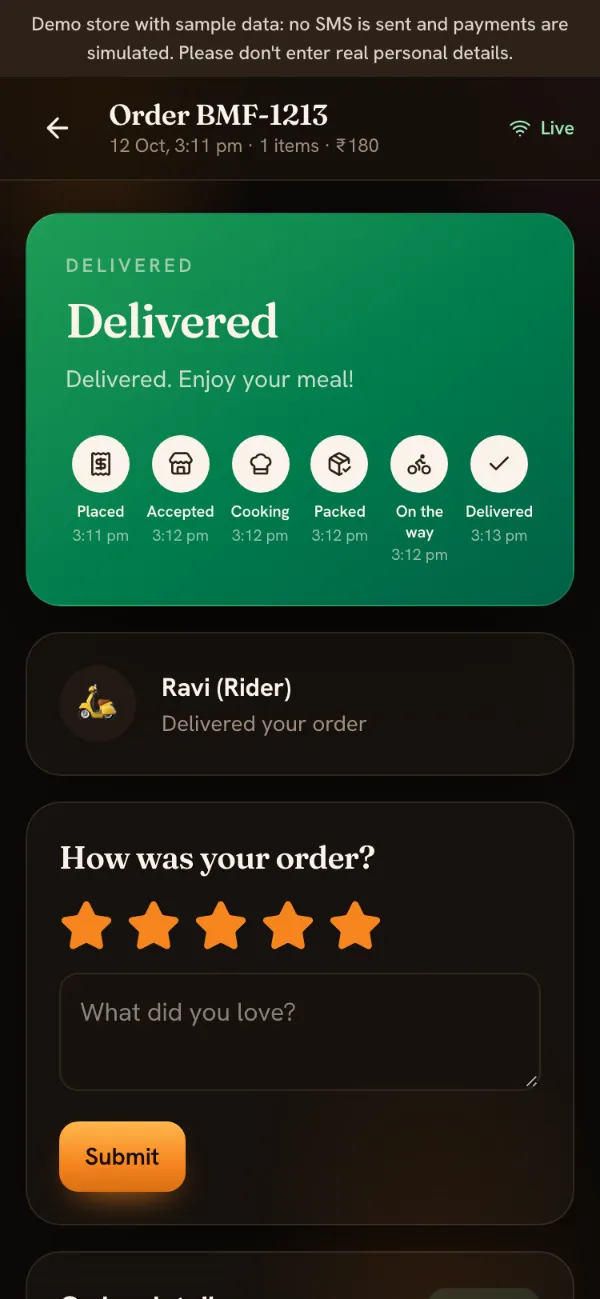
The resident's tracker turns green, lists the time of every step and asks for a rating from 1 to 5 stars with an optional note. Next time, the order is one tap away as Your usual on the menu.
When things go wrong
- Payment fails. The order stays
payment_pending; the resident can retry or cancel, and it is cancelled after 30 minutes if nothing happens. - The cafe can't make it. Staff reject it with a reason such as “Item sold out” or “Kitchen too busy”. Paid orders are refunded automatically.
- The resident changes their mind. They can cancel while it is still
placed. After that, the cafe can cancel it. - Money arrives for an order that was already closed, for example a payment that completes after the 30-minute cancellation. It is refunded automatically.
Why the server owns the status
Because the server enforces the order of statuses and records who made each change, the resident's tracker, the kitchen board, rider mode and the Android app can never disagree about where an order is. Staff don't have to remember the rules, residents don't have to call to ask, and at the end of the day the numbers in Day close come from the same records.
Want to see it from the resident's side first? Read how it works, or follow your first order on the demo store. For the kitchen and owner side, see Book My Food for cafes.